Heute testen Hauke und Jean Zorin OS 17 Core und Zorin OS 17 Light aus. Was hat sich geändert? Können wir es weiterempfehlen?
Wenn Du das Video unterstützen willst, dann gib bitte eine Bewertung ab, und schreibe einen Kommentar. Vielen Dank!
--------------------
Links:
Zoirn OS: https://zorin.com/os/
Forum: https://forum.linuxguides.de/
Haukes Webseite: https://goos-habermann.de/index.php
Nicht der Weisheit letzter Schluß: youtube.com/@nichtderweisheit
Linux Guides Admin: https://www.youtube.com/@LinuxGuidesAdmin-xw6fd
Professioneller Linux Support*: https://www.linuxguides.de/linux-support/
Linux Mint Kurs für Anwender*: https://www.linuxguides.de/kurs-linux-mint-fur-anwender/
Ubuntu Kurs für Anwender*: https://www.linuxguides.de/ubuntu-kurs-fuer-anwender/
Linux für Fortgeschrittene*: https://www.linuxguides.de/linux-kurs-fuer-fortgeschrittene/
Offizielle Webseite: https://www.linuxguides.de
Tux Tage: https://www.tux-tage.de/
Forum: https://forum.linuxguides.de/
Unterstützen: http://unterstuetzen.linuxguides.de
Twitter: https://twitter.com/LinuxGuides
Mastodon: https://mastodon.social/@LinuxGuides
Matrix: https://matrix.to/#/+linuxguides:matrix.org
Discord: https://www.linuxguides.de/discord/
Kontakt: https://www.linuxguides.de/kontakt/
BTC-Spende: 1Lg22tnM7j56cGEKB5AczR4V89sbSXqzwN
Haftungsausschluss:
-------------------------------------
Das Video dient lediglich zu Informationszwecken. Wir übernehmen keinerlei Haftung für in diesem Video gezeigte und / oder erklärte Handlungen. Es entsteht in keinem Moment Anspruch auf Schadensersatz oder ähnliches.
Die Service-Monitoring-Software Prometheus ist aus Kubernetes-Umgebungen kaum wegzudenken. Sowohl Openshift als auch Rancher haben sie integriert. (Kubernetes, Dateisystem)
It is that time of the year again. FOSDEM will take place in Brussels on
3 and 4 February 2024. The Free Software Foundation Europe will be there
with most of its staff and some of our volunteers! Are you planning to
attend? If so, come meet us at our booth!
FOSDEM brings together thousands of Free Software enthusiasts in
Brussels on the first weekend of February each year to discuss Free
Software related topics. Once again, we are participating in this
two-day event at the Free University of Brussels with our booth, the
Legal and Policy Devroom that we co-organize, and other interesting
talks. Our team will be there ready to meet you, engage in fruitful
discussions, and network with the Free Software community. Come along to
check out our socks and t-shirts, along with a bunch of freshly-printed
stickers!
If you are planning to come to FOSDEM, we encourage you to join our Matrix FOSDEM 2024
room. Stay up to date and step by our social gatherings!Indeed,
if you are already in Brussels on Friday, you can join our first social
gathering and catch up! We'll meet for dinner and drinks at La
Mazette at 19:00h. See in OpenStreetMap.
Saturday, 3 February
From Saturday, as usual, you will find us around, mainly at our booth.
Whether you are a newcomer or a Free Software expert, our team will be happy
to meet you at the FSFE booth. Come to chat with us and discuss of
Free Software, get informed about our activities, share with us your
impressions about our new stickers, and add a new t shirt - or a pair of
socks - to your wardrobe. Our booth is the best place to find our team!
The FSFE Booth is in Building K level 2. Group A - Community
advocacy, 5.
Moreover, Saturday is the day during which our co-organized devroom, the Legal and
Policy Issues Devroom, takes place. We have been co-organizing this
devroom since 2020. Since then, FOSDEM participants have showed great
interest in these topics. Our Legal and Policy Issues Devroom is taking
place from 15:00 in Guillissen. One more year, together with our
co-organisers Karen Sandler and Bradley Kuhn from Software Freedom
Conservancy, and Tom Marble from Informatique, Inc., the FSFE’s
Alexander Sander and Matthias Kirschner will be addressing key legal and
policy topics related to Free Software.
09:00h - 19:00h - FSFE Booth Building K level 2. Group A - Community advocacy, 5.
15:00h – 15:05h - Welcome to the Legal and Policy
Issues Devroom: UA2.220 (Guillissen)
15:05h – 16:00h - RHEL and CentOS and the growth of
openwashing in FOSS Room: UA2.220 (Guillissen)
16:00h – 16:30h - Figuring out trademark policy on the fly Room: UA2.220 (Guillissen)
16:30h – 17:00h - GPL’s Termination under German Law Room: UA2.220 (Guillissen)
17:00h – 17:40h - Further Restrictions, Imposed
Downstream on Copyleft, Wreak Havoc: Discussing A Plan of Action Room:
UA2.220 (Guillissen)
17:40h – 18:10h - The new Swiss Open Source Law:
"Public Money Public Code" by default Room: UA2.220 (Guillissen)
18:10h - 19:00h - Hot Topics: Organizers of the Legal
& Policy DevRoom discuss the issues of the day Room: UA2.220
(Guillissen)
After a long day, what is better than a pizza? Join us to continue
discussing Free Software while we enjoy yummy pizza. We'll at Otomat at 19:30h. See
in OpenStreetMap.
Sunday, 4 February
On Sunday, our booth will be open from 9:00h until 17:00h. You will find
there our team and volunteers who would love to explain our
activities to you. We come with a lot of merchande, but if you
want to secure a t-shirt in your size, the sooner you are coming, the
better!
On this day, the "Open Source in
the European Legislative Landscape" devroom will take place. This
devroom is run by Simon Phipps, Enzo Ribagnac, Maarten Aertsen, Axel
Thévernet, Deb Bryant, Alexander Sander, and Gijs Hillenius. The
Community will discuss current policy topics with European legislators.
There, Alexander Sander, FSFE's Senior Policy Consultant, will moderate
the session on "FOSS Policy
Engagement". After that, if you stay in the same room, you will have
the chance to listen to Lina Ceballos, FSFE Policy Project Manager, who
will open the session on “Public
Services interoperability” and the Interoperable Europe Act,
followed by a discussion between decision makers and the Community.
Later that day, Lucas Lasota, FSFE Programme Manager, together with our
Netherlands Coordinator Niko Rikken, will highlight the main challenges
for Router Freedom and Device
Neutrality in Europe.
Finally, Niharika Singhal, FSFE’s Project Manger, will present the
FSFE’s work on AI and license proliferation done within the Zooom initiative. The talk will be
presented in the AI and Machine
Learning devroom.
09:00 – 17:00 - FSFE Booth Building K level 2. Group A - Community advocacy, 5.
13:35 – 14:10 - Public services interoperability: The
Interoperable Europe Act; the challenges and opportunities for the free
and open source communities Room AW1.120
15:10 – 15:20 - Digital Services Interoperability:
Intertwining EU telecom law, the DMA, internet devices and Free Software
Room AW1.120
16:00 – 16:15 - Codes Bound by Ethics: The Rising Tide
of Non-Free Software Licenses in AI ecosystems Room UB2.252A (Lameere)
Of course, there will be many more interesting talks going on! You can
check the schedule of the two-day conference in the FOSDEM website.
Let’s close these two intense but insightful days with our last community
gathering. We'll meet at 18:00 at the Cafè La Maison du Peuple. See in OpenStreetMap.
Give us a hand!
Although we hope we do not have a lot of merchandise left at the end
of the conference, tearing down the booth is usually not an easy task so
we might need extra hands on Sunday. Contact our Office Assistant,
Francesca, at fi@fsfe.org if you can join us!
Vor circa zwei Monaten wurde das auf Wayland basierte Raspberry Pi OS Bookworm veröffentlicht. Bei dem Betriebssystem wurden seitdem Fehler ausgebessert und auch Finetuning vorgenommen. Anwender berichten Fehler, die während der Tests nicht aufgefallen sind und das Team selbst pflegt Verbesserungen ein, die zwar geplant waren, aber es nicht in die erste Version geschafft haben. Laut eigenen Angaben hat sich unter der Haube von Bookworm sehr viel getan. Die neueste Version kannst Du nun via Imager installieren. Bestehende Installationen darfst […]
Der Elastic Stack ist ein effizientes Werkzeug zur Analyse großer Datenmengen. In diesem Online-Seminar der Golem Karrierewelt werden die verschiedenen Komponenten des Elastic Stack vorgestellt. (Golem Karrierewelt, Server-Applikationen)
Der »Fedora Asahi Remix« ist eine für moderne Macs (Apple Silicon) optimierte Version von Fedora 39. Ich habe mich mit Asahi Linux ja schon vor rund zwei Jahren beschäftigt. Seither hat sich viel getan. Zeit also für einen neuen Versuch! Dieser Beitrag beschreibt die Installation des Fedora Asahi Remix auf einem Mac Mini mit M1-CPU. In einem zweiten Artikel fasse ich die Konfiguration und meine praktischen Erfahrungen zusammen.
Installationsstart
Die Projektseite von Asahi Linux empfiehlt, die Installation von Asahi Linux in einem Terminal wie folgt zu starten:
curl https://alx.sh | sh
Ich habe bei solchen Dingen immer etwas Bauchweh, zumal das Script sofort nach dem sudo-Passwort fragt. Was, wenn irgendjemand alx.sh gekapert hat und mir ein Script unterjubelt, das einen Trojaner installiert? Daher:
curl https://alx.sh -o alx.sh
less alx.sh
sh alx.sh
Die Kontrolle hilft auch nur bedingt. Das Script ist nur wenige Zeilen lang und lädt alle erdenklichen weiteren Tools herunter. Aber der Code sieht zumindest so aus, als würde er tatsächlich Asahi Linux installieren, keine Malware. Eine echte Garantie, dass das alles gefahrlos ist, gibt auch less nicht. Nun gut …
Zuerst aufräumen
Auf meinem Mac fristet eine uralte Asahi-Installation schon seit Jahren ein Schattendasein. Ich wollte das neue Asahi Linux einfach darüber installieren — aber das Installationsprogramm bietet dazu keine Möglichkeit. Die richtige Vorgehensweise sieht so aus: Zuerst müssen die drei damals eingerichteten Partitionen gelöscht werden. Dann kann das Installationsprogramm den partitionsfreien Platz auf der SSD für eine Neuinstallation nutzen.
Dankenswerterweise hat Asahi-Chefentwickler Hector Martin auf einer eigenen Seite eine Menge Know-how zur macOS-Partitionierung zusammengefasst. Dort gibt es auch gleich ein Script, mit dem alte Asahi-Linux-Installationen entfernt werden können. Gesagt, getan!
curl -L https://github.com/AsahiLinux/asahi-installer/raw/main/tools/wipe-linux.sh -o wipe-linux.sh
less wipe-linux.sh
sh wipe-linux.sh

THIS SCRIPT IS DANGEROUS!
DO NOT BLINDLY RUN IT IF SOMEONE JUST SENT YOU HERE.
IT WILL INDISCRIMINATELY WIPE A BUNCH OF PARTITIONS
THAT MAY OR MAY NOT BE THE ONES YOU WANT TO WIPE.

You are much better off reading and understanding this guide:
https://github.com/AsahiLinux/docs/wiki/Partitioning-cheatsheet

Press enter twice if you really want to continue.
Press Control-C to exit.

Started APFS operation on disk1
Deleting APFS Container with all of its APFS Volumes
Unmounting Volumes
Unmounting Volume "Asahi Linux - Data" on disk1s1
Unmounting Volume "Asahi Linux" on disk1s2
Unmounting Volume "Preboot" on disk1s3
Unmounting Volume "Recovery" on disk1s4
Unmounting Volume "Update" on disk1s5
...
Bei meinem Test hat das Script exakt getan, was es soll. Ein kurzer Test mit diskutil zeigt, dass sich zwischen Partition 2 und 3 eine Lücke von rund 200 GiB befindet. Dort war vorher Asahi Linux, und dorthin soll das neue Asahi Linux wieder installiert werden.
Zurück an den Start
Nach diesen Vorbereitungsarbeiten (natürlich habe ich vorher auch ein Backup aller wichtiger Daten erstellt, eh klar …) habe ich den zweiten Versuch gestartet.
sh alx.sh

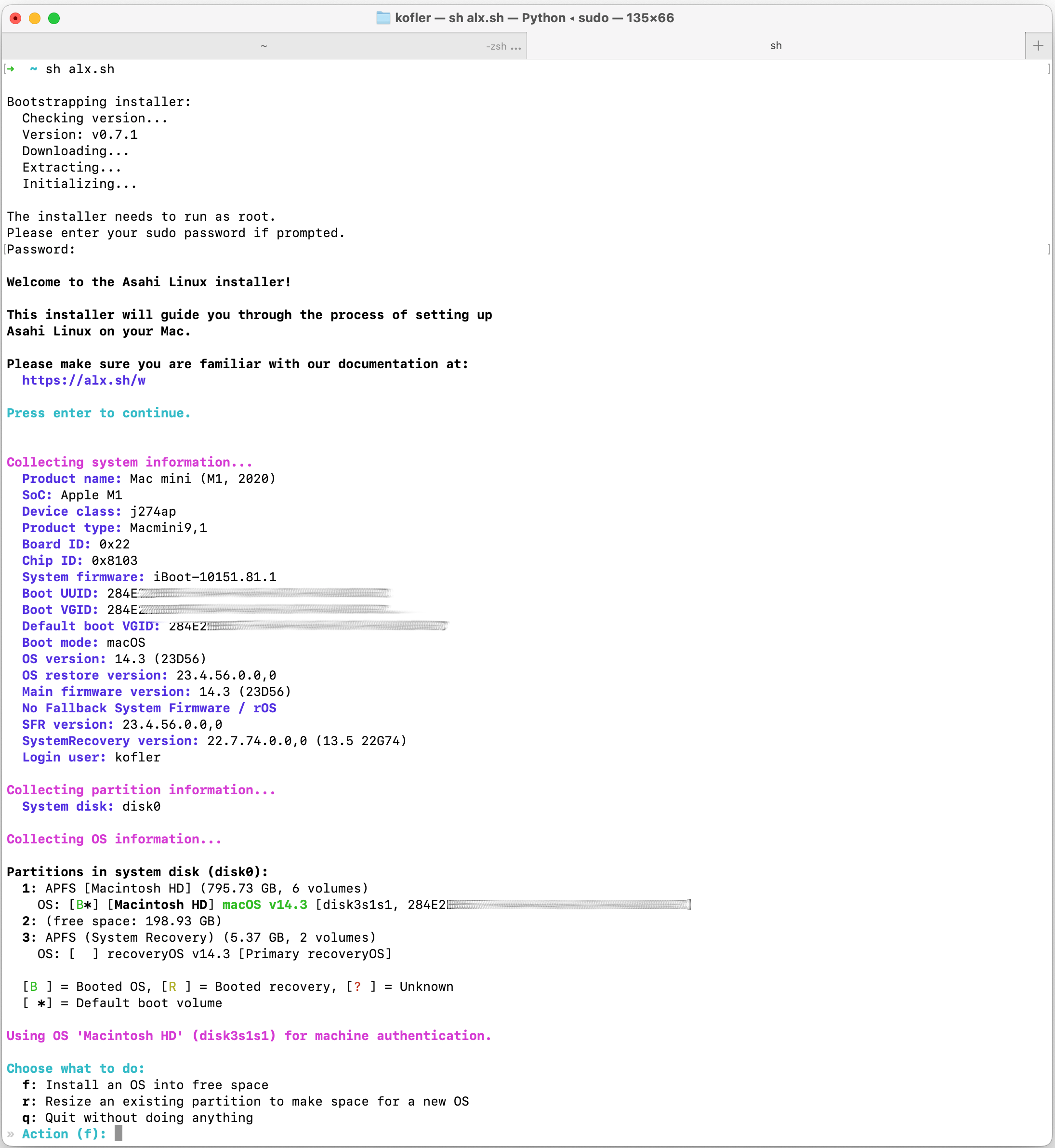
Bootstrapping installer:
  Checking version...
  Version: v0.7.1
  Downloading...
  Extracting...
  Initializing...

The installer needs to run as root.
Please enter your sudo password if prompted.
Password:*******

Welcome to the Asahi Linux installer!

This installer will guide you through the process of setting up
Asahi Linux on your Mac.

Please make sure you are familiar with our documentation at:
  https://alx.sh/w

Press enter to continue.

Collecting system information...
  Product name: Mac mini (M1, 2020)
  SoC: Apple M1
  Device class: j274ap
  Product type: Macmini9,1
  Board ID: 0x22
  Chip ID: 0x8103
  System firmware: iBoot-10151.81.1
  Boot UUID: 284E...
  Boot VGID: 284E...
  Default boot VGID: 284E...
  Boot mode: macOS
  OS version: 14.3 (23D56)
  OS restore version: 23.4.56.0.0,0
  Main firmware version: 14.3 (23D56)
  No Fallback System Firmware / rOS
  SFR version: 23.4.56.0.0,0
  SystemRecovery version: 22.7.74.0.0,0 (13.5 22G74)
  Login user: kofler

Collecting partition information...
  System disk: disk0

Collecting OS information...
Nach der Darstellung einiger Infos ermittelt das Script eine Partitionstabelle und bietet dann an, Asahi Linux im freien Bereich der Disk zu installieren (Option f).
Partitions in system disk (disk0):
  1: APFS [Macintosh HD] (795.73 GB, 6 volumes)
    OS: [B*] [Macintosh HD] macOS v14.3 [disk3s1s1, 284E...]
  2: (free space: 198.93 GB)
  3: APFS (System Recovery) (5.37 GB, 2 volumes)
    OS: [  ] recoveryOS v14.3 [Primary recoveryOS]

  [B ] = Booted OS, [R ] = Booted recovery, [? ] = Unknown
  [ *] = Default boot volume

Using OS 'Macintosh HD' (disk3s1s1) for machine authentication.

Choose what to do:
  f: Install an OS into free space
  r: Resize an existing partition to make space for a new OS
  q: Quit without doing anything

» Action (f): f
Im nächsten Schritt haben Sie die Wahl zwischen verschiedenen Fedora-Varianten. Ich habe mich für Gnome entschieden:
Choose an OS to install:
  1: Fedora Asahi Remix 39 with KDE Plasma
  2: Fedora Asahi Remix 39 with GNOME
  3: Fedora Asahi Remix 39 Server
  4: Fedora Asahi Remix 39 Minimal
  5: UEFI environment only (m1n1 + U-Boot + ESP)

» OS: 2
Jetzt beginnt die eigentliche Installation. Leider haben Sie keine Möglichkeit, auf die Partitionierung oder Verschlüsselung Einfluss zu nehmen. Es werden zwei kleine Partitionen für /boot (500 MiB) und /boot/efi eingerichtet (1 GiB). Den restlichen Platz füllt ein btrfs-Dateisystem ohne Verschlüsselung. Immerhin können Sie bei Bedarf festlegen, dass nicht der gesamte partitionsfreie Platz von Fedora Asahi Linux genutzt wird.
Downloading OS package info...
-

Minimum required space for this OS: 14.94 GB

Available free space: 198.93 GB

How much space should be allocated to the new OS?
  You can enter a size such as '1GB', a fraction such as '50%',
  the word 'min' for the smallest allowable size, or
  the word 'max' to use all available space.

» New OS size (max): max

The new OS will be allocated 198.93 GB of space,
leaving 167.94 KB of free space.

Enter a name for your OS
» OS name (Fedora Linux with GNOME):  <return>

Using macOS 13.5 for OS firmware
Downloading macOS OS package info...
Creating new stub macOS named Fedora Linux with GNOME
Installing stub macOS into disk0s5 (Fedora Linux with GNOME)
Preparing target volumes...
Checking volumes...
Beginning stub OS install...
Setting up System volume...
Setting up Data volume...
Setting up Preboot volume...
Setting up Recovery volume...
Wrapping up...

Stub OS installation complete.

Adding partition EFI (524.29 MB)...
  Formatting as FAT...
Adding partition Boot (1.07 GB)...
Adding partition Root (194.83 GB)...
Collecting firmware...
Installing OS...
  Copying from esp into disk0s4 partition...
  Copying firmware into disk0s4 partition...
  Extracting boot.img into disk0s7 partition...
  Extracting root.img into disk0s6 partition...
Downloading extra files...
  Downloading gstreamer1-plugin-openh264-1.22.1-1.fc39.aarch64.rpm (1/3)...
  Downloading mozilla-openh264-2.3.1-2.fc39.aarch64.rpm (2/3)...
  Downloading openh264-2.3.1-2.fc39.aarch64.rpm (3/3)...
Preparing to finish installation...
Collecting installer data...

To continue the installation, you will need to enter your macOS
admin credentials.

Password for kofler: **********

Setting the new OS as the default boot volume...
Installation successful!
Install information:
  APFS VGID: 0E76...
  EFI PARTUUID: 8d47...

Help us improve Asahi Linux!
We'd love to know how many people are installing Asahi and on what
kind of hardware. Would you mind sending a one-time installation
report to us?

This will only report what kind of machine you have, the OS you're
installing, basic version info, and the rough install size.
No personally identifiable information (such as serial numbers,
specific partition sizes, etc.) is included. You can view the
exact data that will be sent.

Report your install?
  y: Yes
  n: No
  d: View the data that will be sent

» Choice (y/n/d): y

Your install has been counted. Thank you! ❤
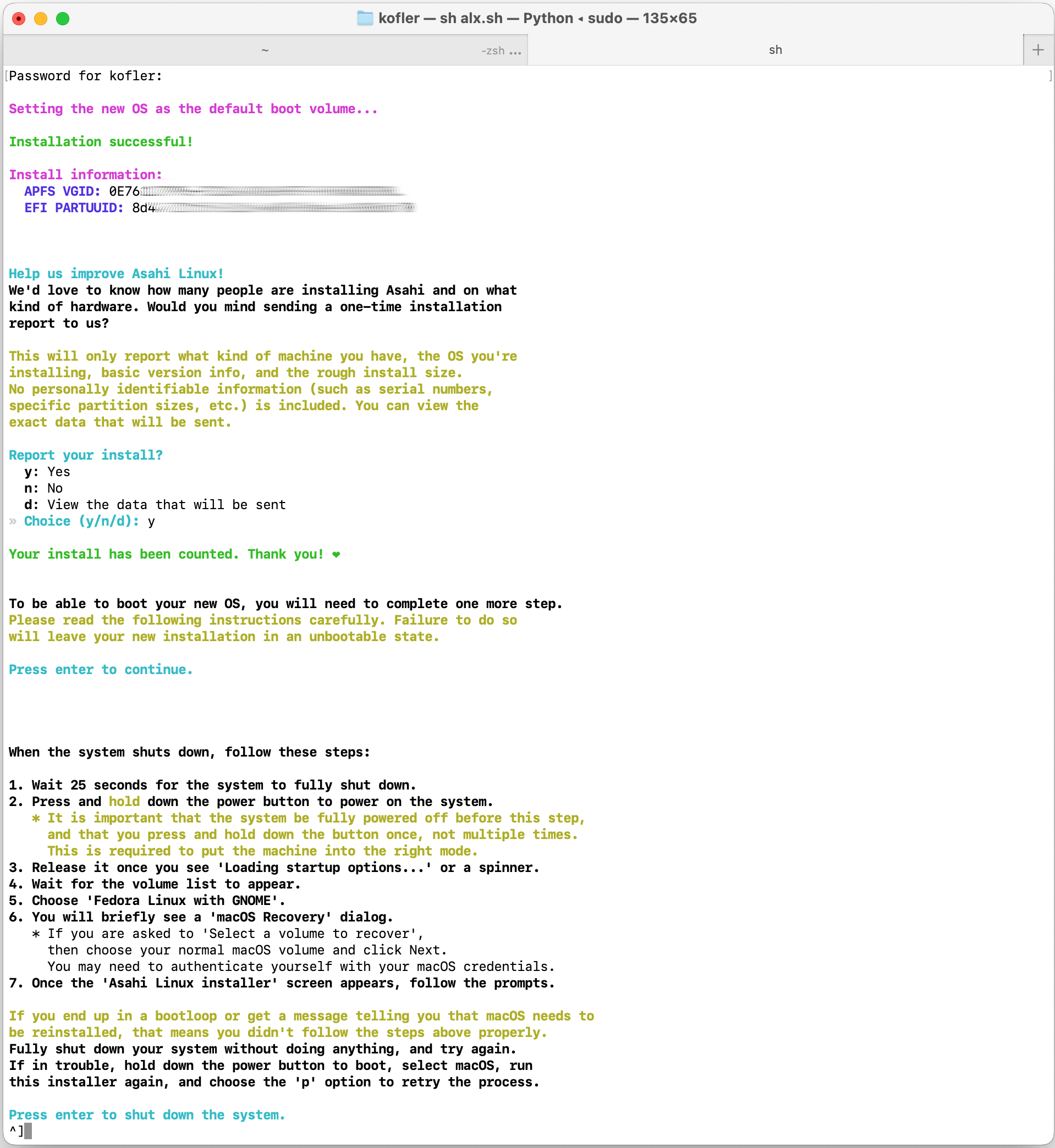
Zuletzt zeigt das Installations-Script genaue Anweisungen für den ersten Start von Asahi Linux an:
To be able to boot your new OS, you will need to complete one more step.
Please read the following instructions carefully. Failure to do so
will leave your new installation in an unbootable state.

Press enter to continue.

When the system shuts down, follow these steps:

1. Wait 25 seconds for the system to fully shut down.
2. Press and hold down the power button to power on the system.
   * It is important that the system be fully powered off before this step,
     and that you press and hold down the button once, not multiple times.
     This is required to put the machine into the right mode.
3. Release it once you see 'Loading startup options...' or a spinner.
4. Wait for the volume list to appear.
5. Choose 'Fedora Linux with GNOME'.
6. You will briefly see a 'macOS Recovery' dialog.
   * If you are asked to 'Select a volume to recover',
     then choose your normal macOS volume and click Next.
     You may need to authenticate yourself with your macOS credentials.
7. Once the 'Asahi Linux installer' screen appears, follow the prompts.

If you end up in a bootloop or get a message telling you that macOS needs to
be reinstalled, that means you didn't follow the steps above properly.
Fully shut down your system without doing anything, and try again.
If in trouble, hold down the power button to boot, select macOS, run
this installer again, and choose the 'p' option to retry the process.

Press enter to shut down the system.
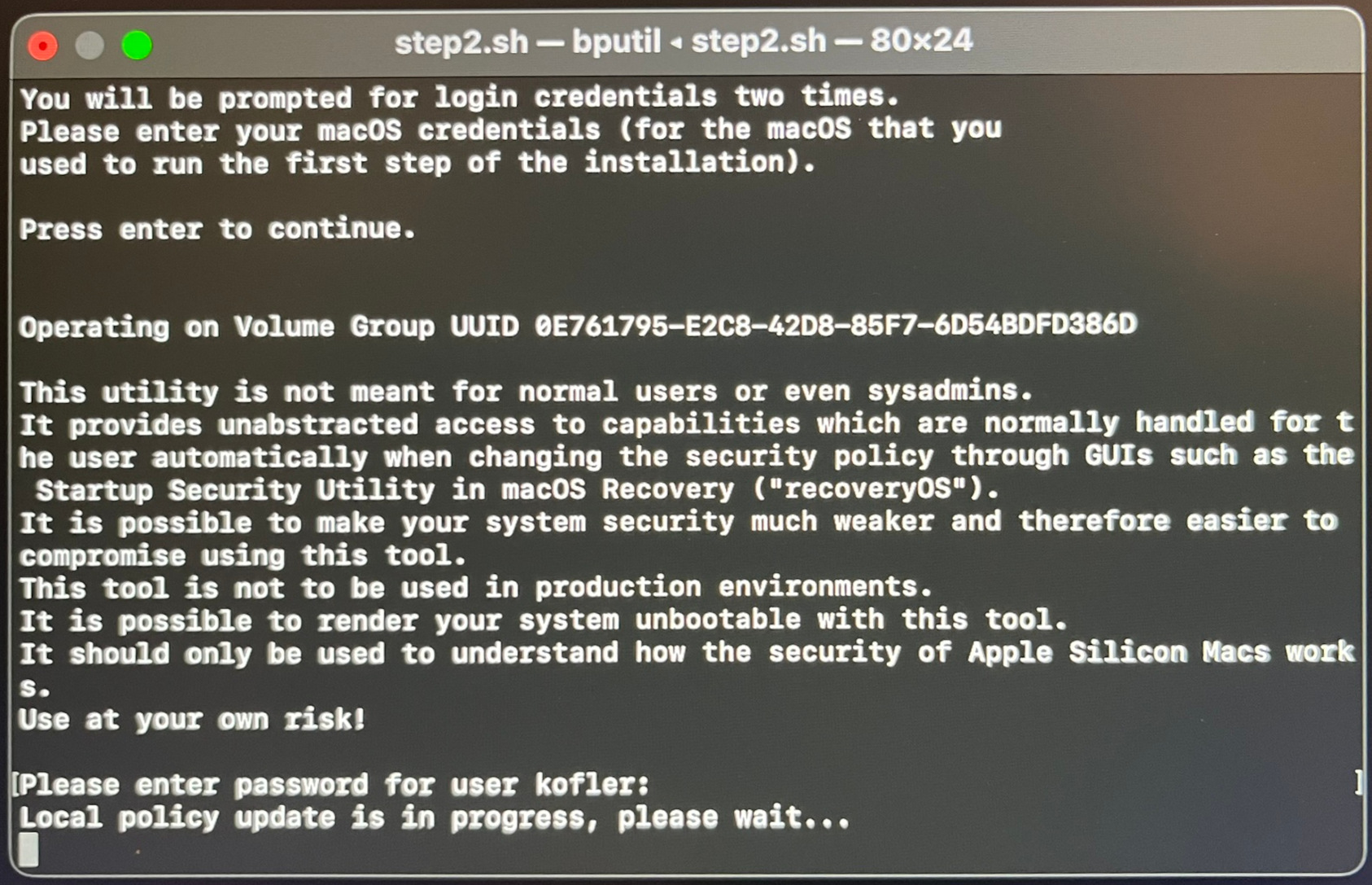
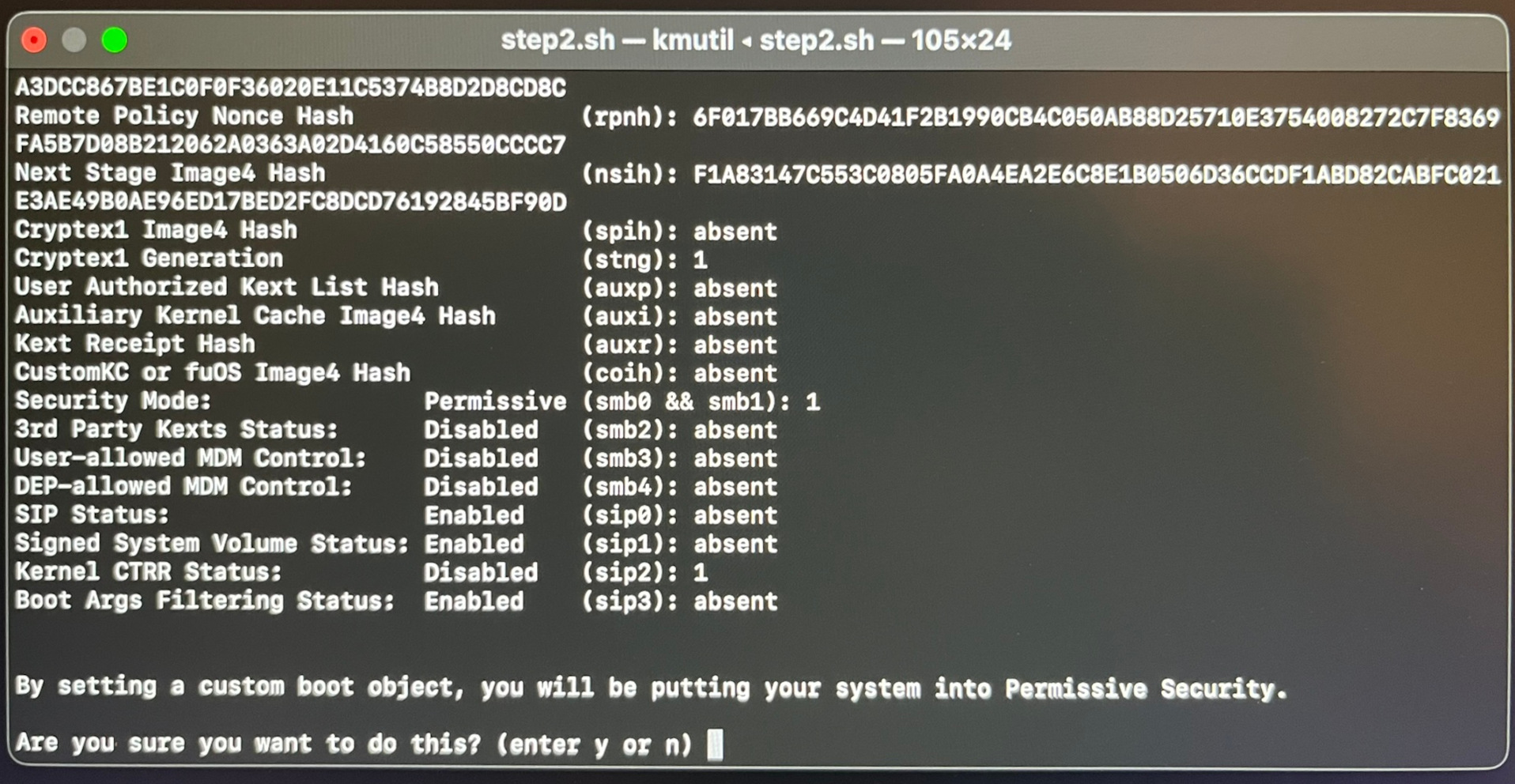
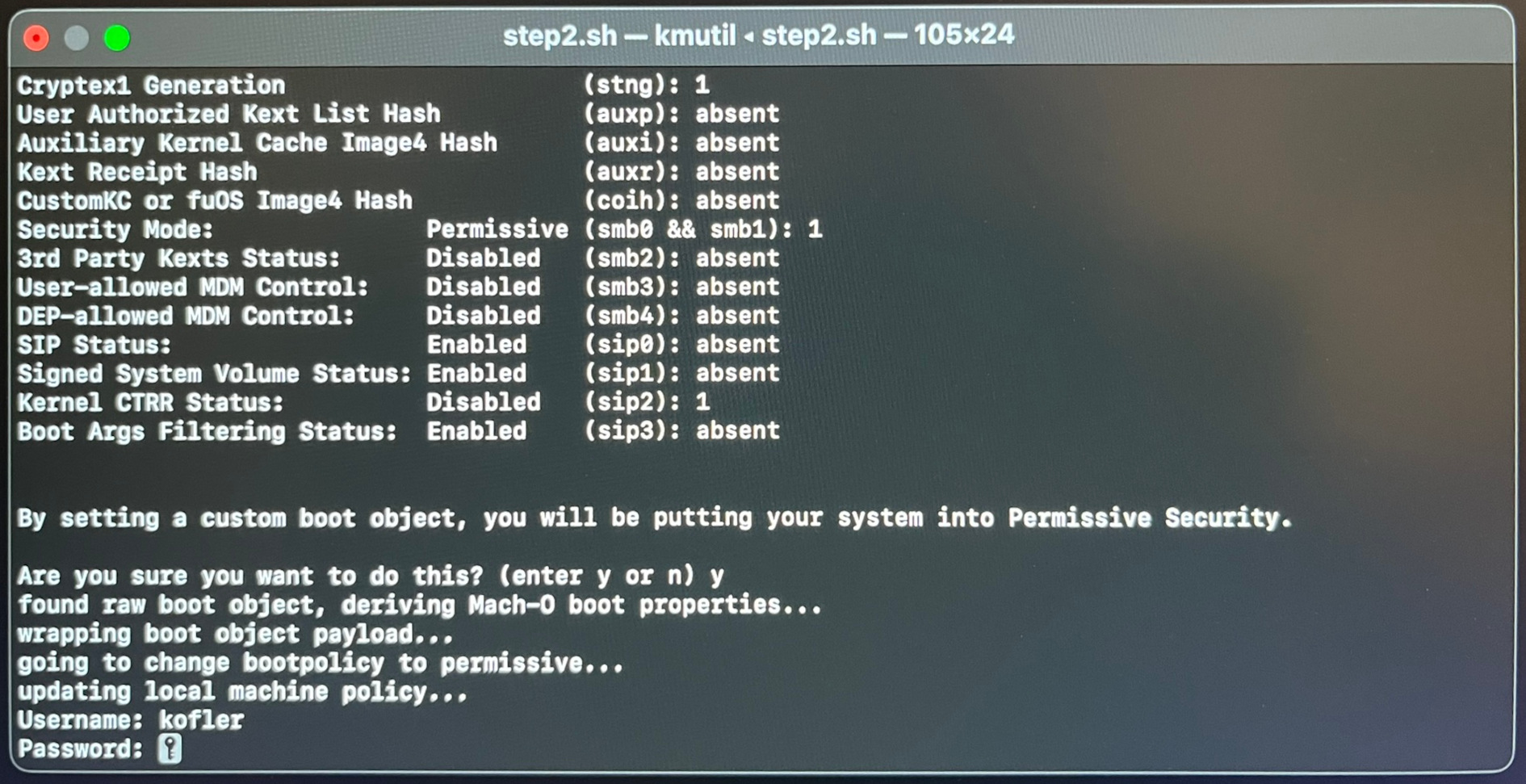
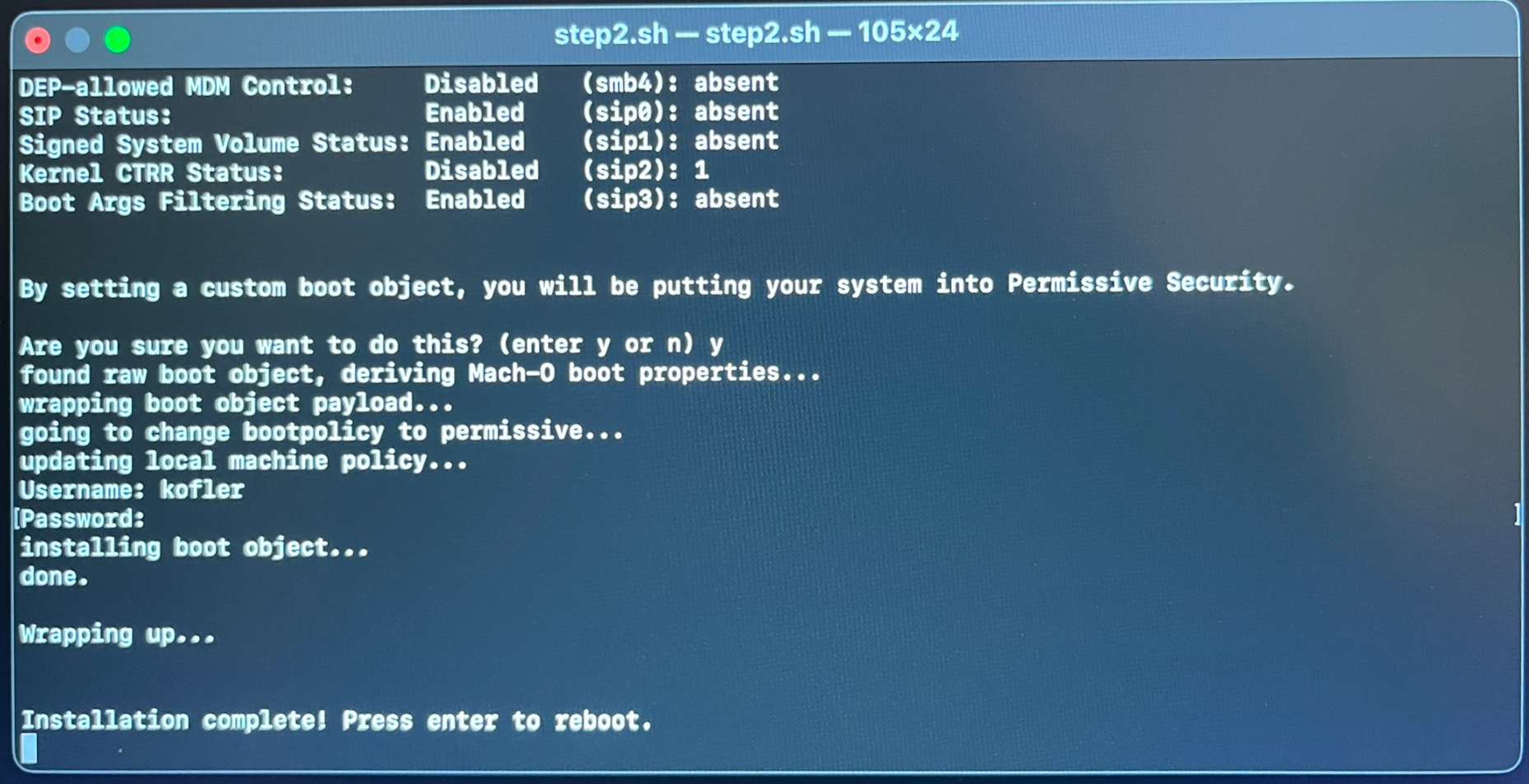
Ich habe den Installationsprozess auch in Screenshots dokumentiert:
Reboot
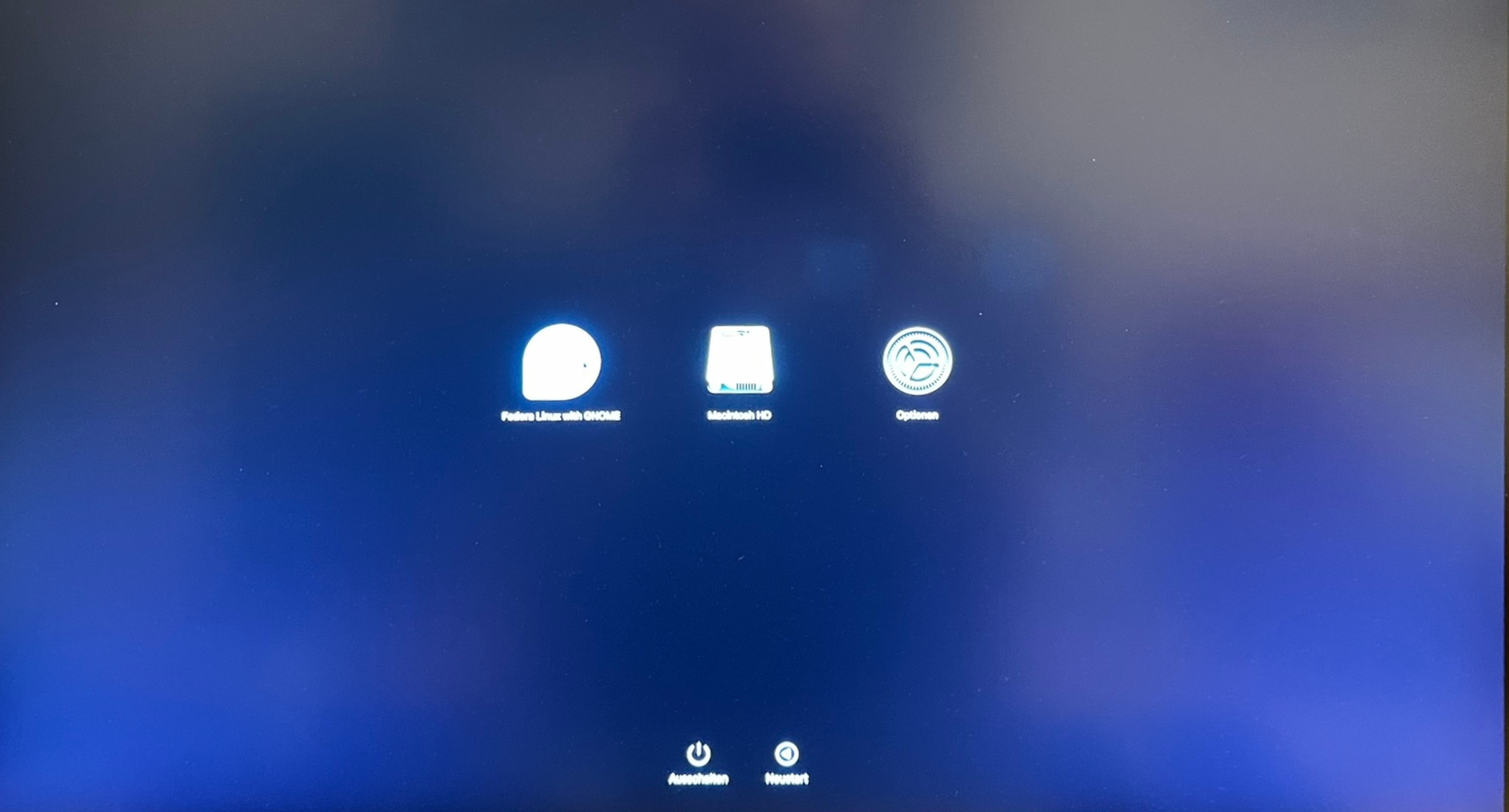
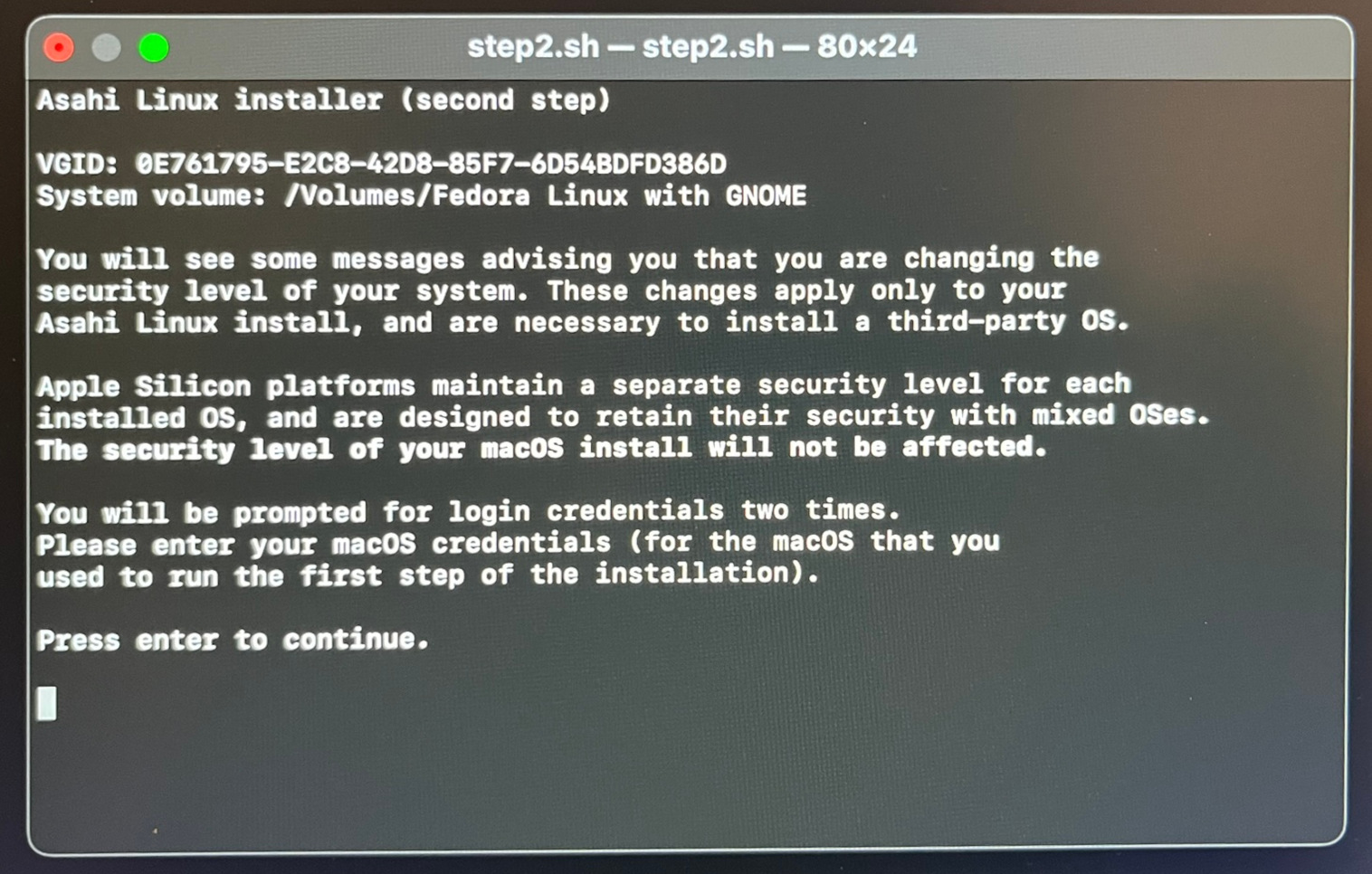
Das Script fährt nun macOS herunter. Zum Neustart drücken Sie die Power-Taste und halten diese ca. 15 Sekunden lang gedrückt, bis ein Auswahlmenü erscheint. Dort wählen Sie Asahi Linux. Dieses wird allerdings nicht gleich gestartet, vielmehr muss nun die Bootkonfiguration fertiggestellt werden. Ich habe die folgenden Schritte mit Fotos dokumentiert.
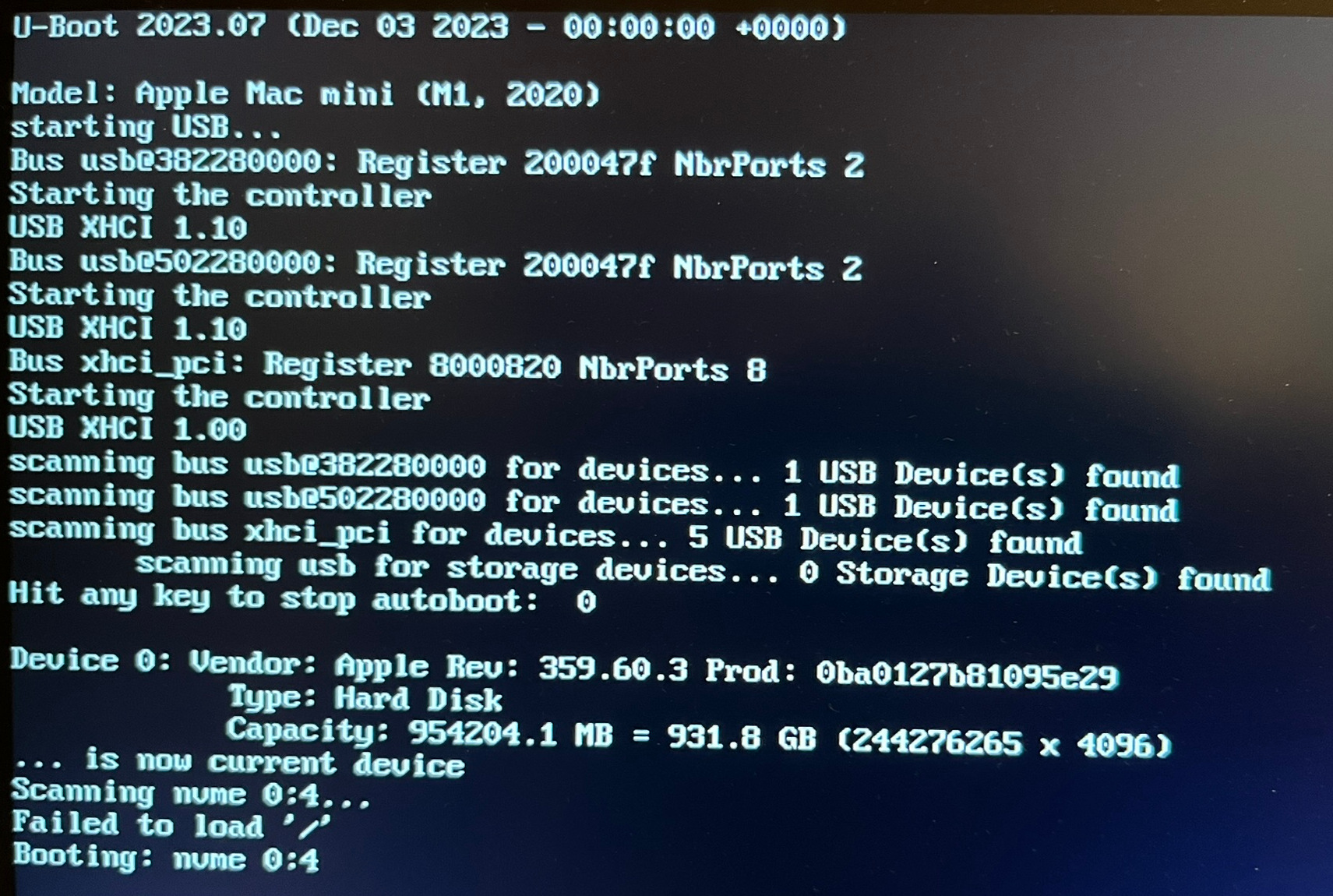
Fedora Linux auswählenBootloader InstallationBootloader-Installation (Forts.)Bootloader-Installation (Forts.)Bootloader-Installation (Forts.)Bootloader-Installation (Forts.)Meldungen beim ersten »echten« Linux-Bootprozess. »Failed to load« klingt schlimm, aber unmittelbar danach geht es zum Glück weiter.Geschafft! Jetzt muss nur noch die Fedora-Installation abgeschlossen werden.
Fedora-Installation abschließen
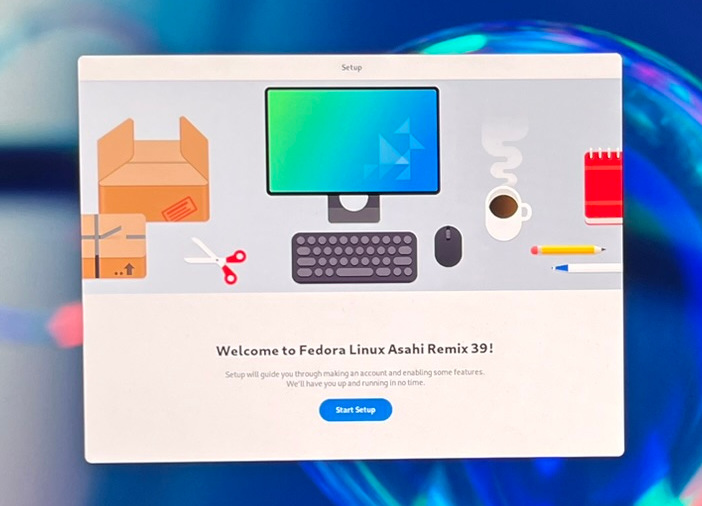
Fedora Linux läuft zum ersten Mal. Nun müssen Sie einige grundlegende Konfigurationsschritte erledigen (User-Name + Passwort, WLAN, Sprache, Tastaturlayout, Update).
Wechseln zwischen macOS und Fedora
Der Bootprozess ist jetzt so eingerichtet, dass bei jedem Neustart automatisch Fedora gestartet wird. Wenn Sie macOS verwenden möchten, müssen Sie den Rechner zuerst komplett herunterfahren. Dann drücken Sie wieder die Power-Taste, halten Sie ca. 15 Sekunden gedrückt, bis das OS-Menü erscheint, und wählen macOS.
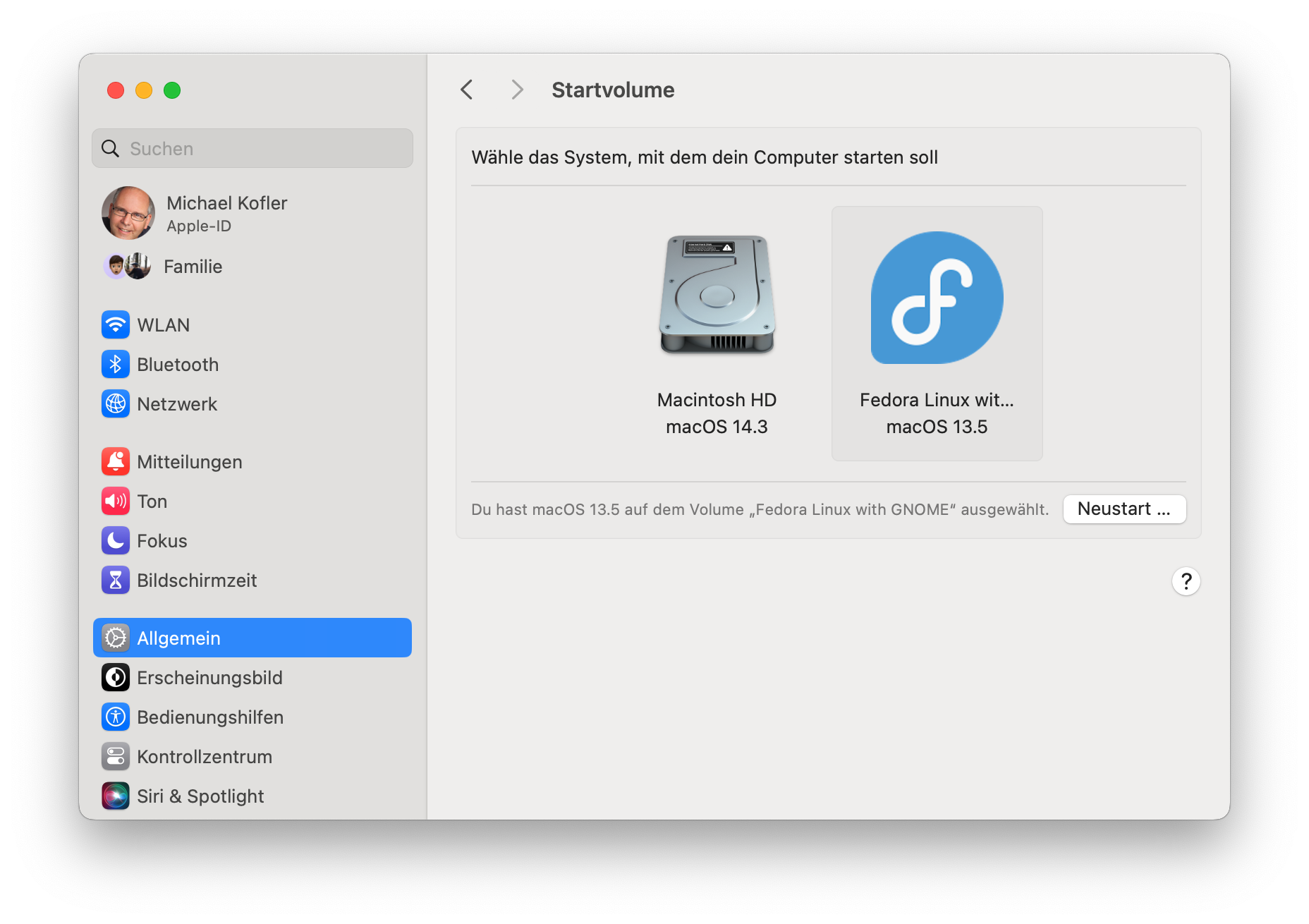
Unter macOS können Sie das Default-OS voreinstellen. Es ist aber leider nicht möglich, den Mac so zu konfigurieren, dass bei jedem Bootprozess automatisch das Auswahlmenü erscheint. Sie müssen sich für eine Hauptvariante entscheiden. Jeder Bootprozess in ein anderes OS bleibt mühsam (Power-Taste 15 Sekunden drücken …).
Default-OS einstellen
Geekbench
Wie schnell ist Linux im Vergleich zu macOS? Ich habe auf meinem Mac Mini M1 Geekbench 6 jeweils unter macOS und unter Fedora Asahi ausgeführt. Das Ergebnis: im Rahmen der Messgenauigkeit etwa gleich schnell.
               Single     Multi Core
---------- ----------   ------------
macOS            2360           8050
Fedora           2357           7998
Mozilla hat Firefox Klar 122 (internationaler Name: Firefox Focus 122) für Android veröffentlicht.
Die Neuerungen von Firefox Klar 122 für Android
Bei Firefox Klar 122 handelt es sich um ein Wartungs-Update, bei welchem der Fokus auf Fehlerbehebungen und Verbesserungen unter der Haube lag. Dazu kommen wie immer neue Plattform-Features der aktuellen GeckoView-Engine sowie geschlossene Sicherheitslücken.
Mit _docker-compose_ und einem _Reverse-Proxy_ ist ein (Web-)Server schnell aufgesetzt. Und wenn er erst mal läuft, sind weitere Server-Dienste ein Kinderspiel.
Im Bemühen, die Sicherheit des Open-Source-Ökosystems zu stärken, hat das auf sichere Entwicklung und Compiler spezialisierte Unternehmen AdaCore vor kurzem eine Reihe von…
Mit der ersten Veröffentlichung im Jahr 2024 geht der LXD-Fork Incus mit Version 0.5 unter anderem einen Schritt hin zu mehr Komfort und bringt Pakete für Linux-Distributionen mit.
Incus 0.5 als Fork von Canonicals LXD Container-Software bietet Pakete für einige Distributionen und bietet Verbesserungen bei der Unterstützung von Drittanbieter-Tools.
Das ist eine gute Frage. Hat man „IPv6… Kein Anschluss unter dieser Nummer“ gelesen, kann man mich sicher fragen, warum ich mir das antue, wo doch überall Stolpersteine und Probleme lauern. Und ich kenne einige Personen, die sich lieber eine Axt ins Bein schlagen, eine Nadel unter die Fingernägel schieben oder Broccoli essen würden, statt sich mit IPv6 zu beschäftigen.
Die Antwort ist ganz einfach. Ich tue dies, weil ich es kann, Spaß daran habe und IPv4-Adressen knapper und teurer werden.
Möchte man Dienste im Internet anbieten, benötigt man IP-Adressen. Üblicherweise bekommt man zu den gängigen Angeboten von Virtual Private Server, Dedicated Server, etc. eine IPv4-Adresse und ein /64-IPv6-Netzsegment kostenlos. Zusätzliche IPv4-Adressen kosten Stand heute zwischen 2,00 € und 5,00 € pro Monat, wobei häufig noch eine saftige Einrichtungsgebühr hinzukommt. Im Abschnitt Preisübersicht findet ihr das Ergebnis einer kurzen Internetrecherche.
Da ich einen Proxmox-Host und ein /64-IPv6-Netzsegment für Spiel-, Spaß- und Laborumgebungen besitze, möchte ich mich gern damit auseinandersetzen. Und sei es nur, um zu lernen, wo es noch überall klemmt und mit welchen Workarounds man die existierenden Klippen umschiffen kann. Wundert euch also nicht, wenn es in Zukunft noch den ein oder anderen Artikel zu diesem Thema gibt.
Das LPIC-1-Zertifikat setzt das Bestehen der Prüfungen LPI-101 und LPI-102 voraus. Mit dem fünftägigen Online-Seminar der Golem Karrierewelt ist man bestens vorbereitet! (Golem Karrierewelt, Server-Applikationen)
Es ist nun möglich, Firefox als Standard-App für das Betrachten von PDF-Dateien zu konfigurieren.
Unterstützung für Global Privacy Control (GPC)
In den Einstellungen zum Schutz vor Aktivitätenverfolgung befindet sich eine neue Option, um Websites mitzuteilen, dass die eigenen Daten weder verkauft noch weitergegeben werden sollen. Dabei handelt es sich um die sogenannte Global Privacy Control (GPC), an welche sich zumindest Unternehmen in Teilen der USA bereits gesetzlich halten müssen. Die Einstellung gilt ausschließlich für nicht private Tabs. In privaten Tabs ist GPC immer aktiviert.
Über 710 Erweiterungen stehen zur Verfügung
Hierbei handelt es sich um keine Neuerung von Firefox 122. Erwähnt sei aber, dass die Anzahl der zur Verfügung stehenden Erweiterungen weiter stark gestiegen ist. Zur Erinnerung: Seit Firefox 120 gibt es ein offenes Erweiterungssystem in Firefox für Android. Standen mit Veröffentlichung von Firefox 121 noch knapp über 530 Erweiterungen zur Verfügung, sind es jetzt sogar schon mehr als 710 Erweiterungen.
Lokale Installation von Erweiterungen
Und wem das noch nicht genug ist: Firefox 122 unterstützt jetzt auch die Installation von Erweiterungen, welche man sich vom lokalen Dateisystem aus installieren kann. Dazu muss im Bildschirm Einstellungen → Über Firefox fünfmal auf das Firefox-Logo geklickt werden. Anschließend stehen in den Einstellungen weitere Bildschirme zur Verfügung. Einer davon heißt „Add-on aus Datei installieren“.
Aufgrund von Einschränkungen in älteren Versionen von Android steht diese Funktion nur in Android 10 und höher zur Verfügung.
Sonstige Neuerungen von Firefox 122 für Android
In der Verwaltung der Erweiterungen wurde die Möglichkeit integriert, ein Add-on an Mozilla zu melden.
Beim Cookie-Banner-Blocker wurde die Unterstützung für sogenannte Consent Management Provider (CMPs) aktiviert. Während bisher ausschließlich individuelle Domain-Regeln aktiviert waren, werden damit nun auch erste gängige, wenn auch längst noch nicht alle Lösungen unterstützt, wie sie von vielen Websites genutzt werden.
Der Schutz vor Aktivitätenverfolgung wurde um das Blockieren von E-Mail-Trackern in privaten Tabs erweitert.
Die auf anderen Plattformen bereits länger aktivierte Audio-Sandbox ist jetzt auch auf Android aktiviert.
Dazu kommen wie immer neue Plattform-Features der aktuellen GeckoView-Engine, diverse Fehlerbehebungen, geschlossene Sicherheitslücken sowie Verbesserungen unter der Haube.
Unter anderem wurde die „Pull to Refresh“-Funktion weiter verbessert, die Schaltfläche zum Anpassen des Startbildschirms erscheint jetzt auch auf dem Startbildschirm, wenn alle Elemente außer den Verknüpfungen vom Benutzer deaktiviert worden sind, und das Öffnen oder Schließen sogenannter „Custom Tabs“ führt nicht mehr zum Wiedergabe-Stopp von Medien, welche in einem Hintergrundtab laufen.

 Anmelden